웹사이트용 무료 웹사이트 경험 위젯
Jform의 간단한 노코드 빌더를 사용하여 탐색, 접근성 및 상호작용을 개선하세요.
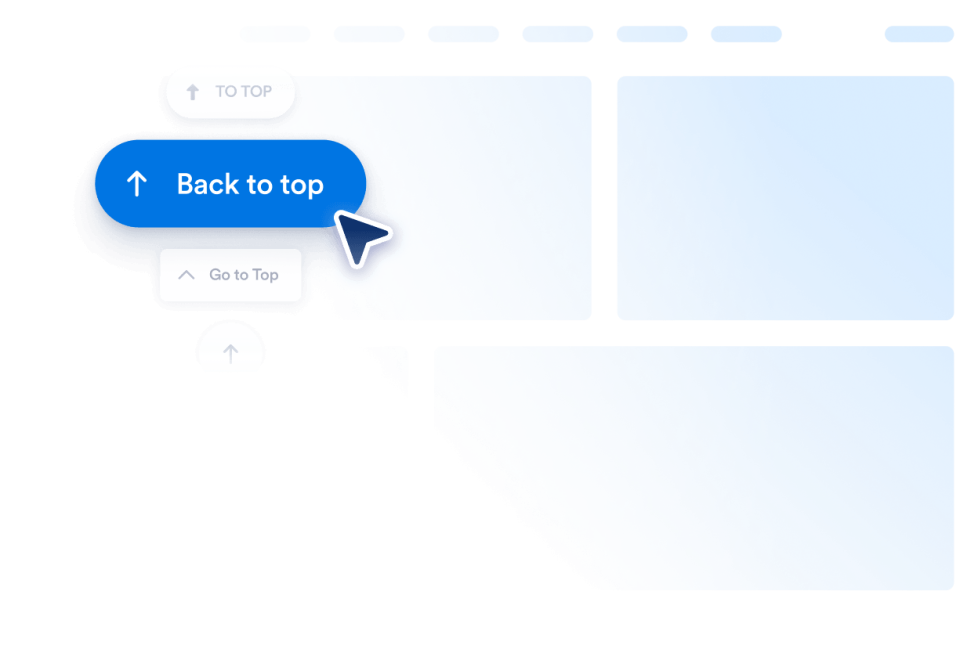
맨 위로 가기
몇 초 만에 웹사이트에 맨 위로 가기 위젯을 추가하세요. 어디에나 임베드할 수 있는 맞춤 설정 가능한 노코드 버튼으로 방문자가 페이지 맨 위로 부드럽게 이동할 수 있도록 하세요.
카테고리로 이동:웹사이트 경험위젯 사용하기접근성
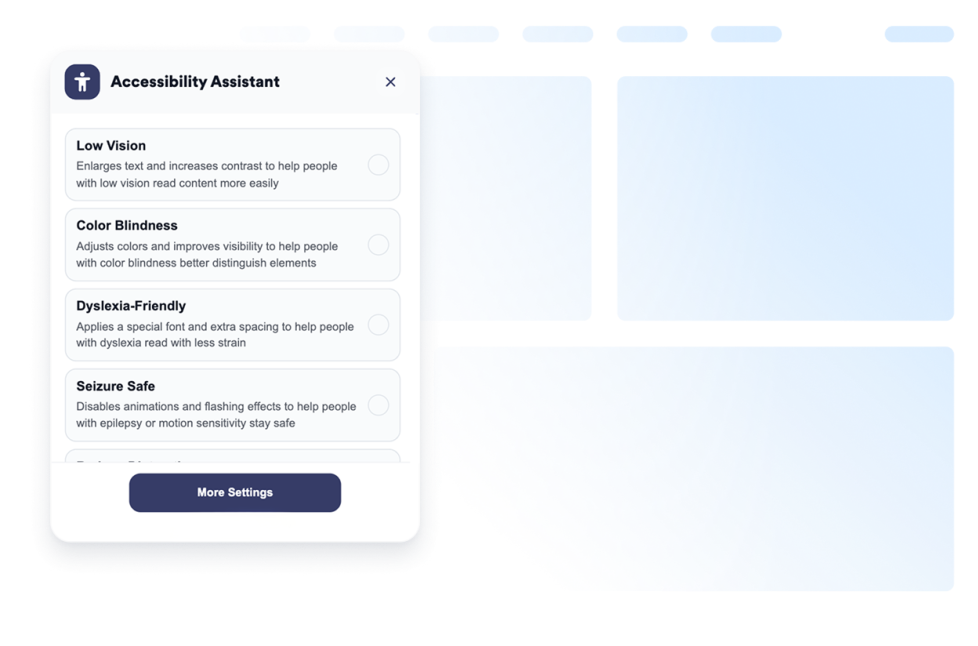
맞춤 설정 가능한 접근성 위젯을 추가하여 방문자가 대비, 텍스트 크기, 간격, 모션을 조정할 수 있도록 지원하세요. 코딩 없이 사전 설정된 접근성 모드를 제공하고 사용자 설정을 기억할 수 있습니다.
카테고리로 이동:웹사이트 경험위젯 사용하기사용자 지정 커서
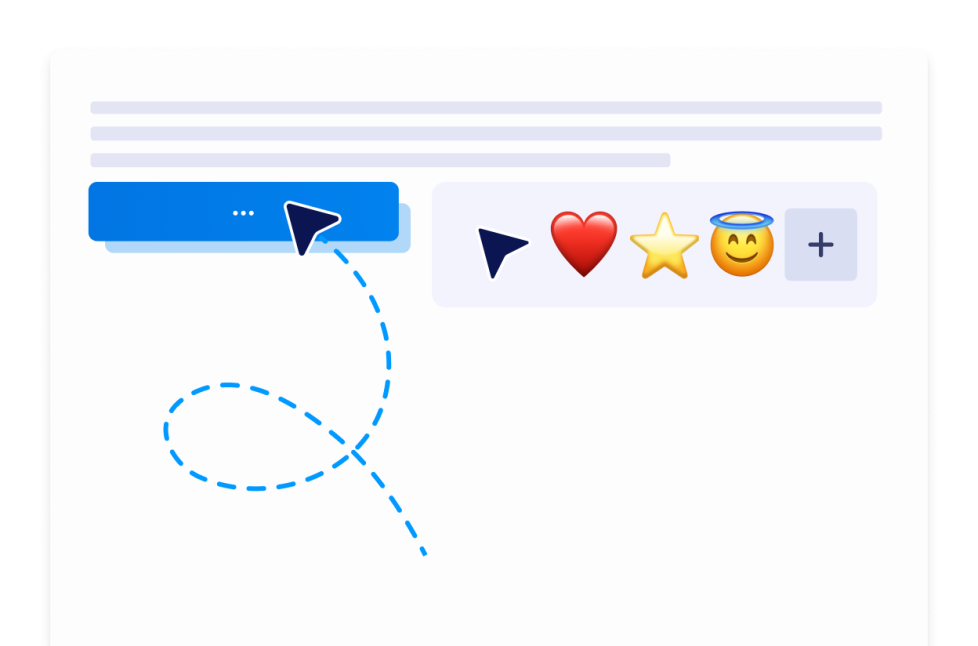
사용자 지정 커서 위젯을 사용하면 커서 스타일을 선택하고, 모양과 움직임을 맞춤 설정하며, 상호작용형 효과를 추가하고, 코딩 없이 웹사이트에 삽입할 수 있습니다.
카테고리로 이동:웹사이트 경험위젯 사용하기다크 모드
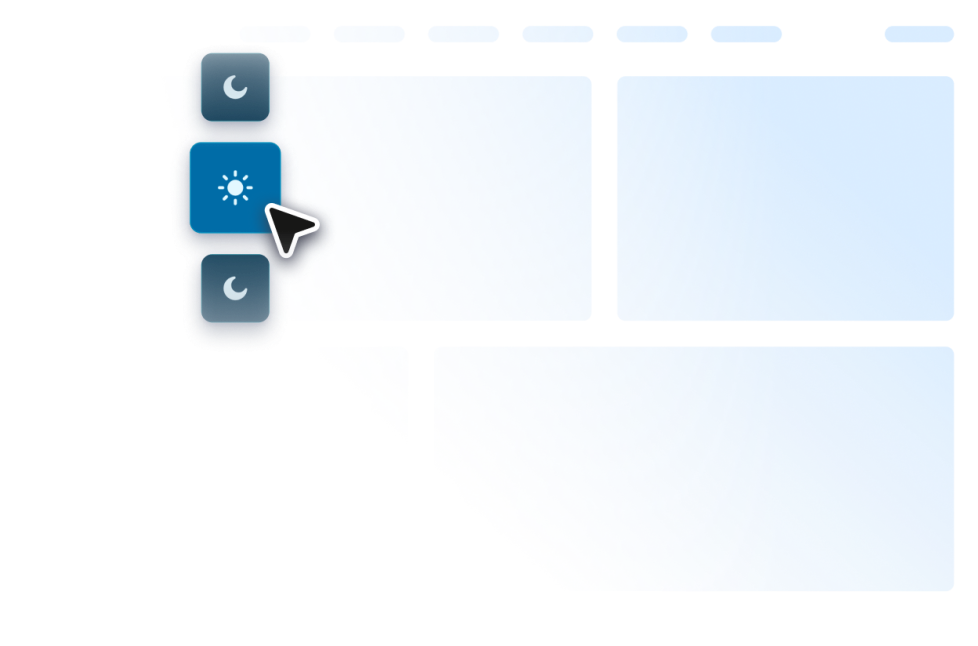
어두운 환경에서도 편안한 브라우징을 위해 웹사이트에 맞춤 설정 가능한 다크모드 버튼 위젯을 추가하세요. 노코드 위젯에서 색상, 배치, 일정 및 스타일을 설정하세요.
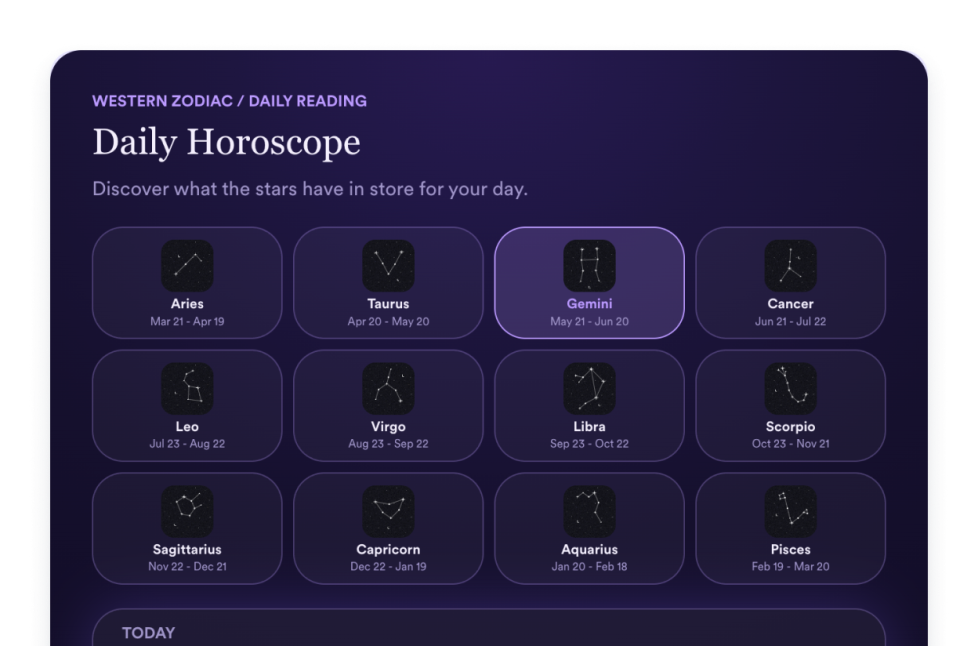
카테고리로 이동:웹사이트 경험위젯 사용하기운세
웹사이트에 운세 위젯을 추가하여 별자리 운세를 공유하고, 별자리 선택기, 목록, 그리드, 슬라이더, 추천 레이아웃, 색상, CTA 및 맞춤형 CSS를 활용해 보세요.
카테고리로 이동:웹사이트 경험위젯 사용하기Tabs Widget
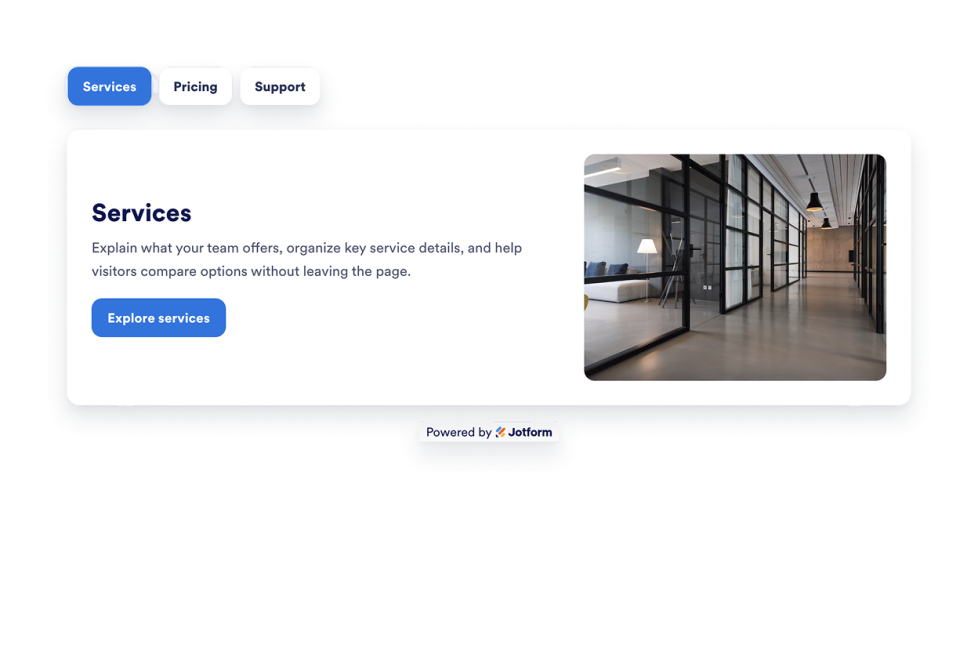
맞춤 설정 가능한 탭 위젯을 웹사이트에 추가하여 콘텐츠를 깔끔하고 클릭 가능한 섹션으로 구성하세요. 코딩 없이 FAQ, 기능, 가격, 탭메뉴, 포트폴리오 등을 위한 탭 레이아웃을 만드세요.
카테고리로 이동:웹사이트 경험위젯 사용하기브라우저 펫
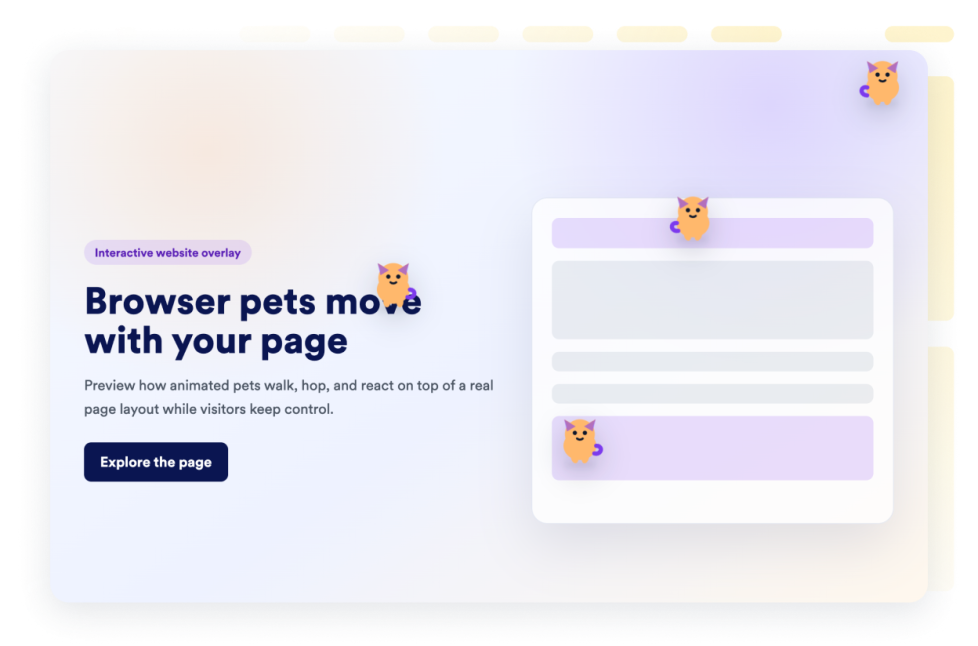
단 몇 초 만에 웹사이트에 마우스 커서 캐릭터 위젯을 추가하세요. Jform의 노코드 웹사이트 위젯 빌더로 디자인을 맞춤 설정하고 간편하게 삽입해 보세요.
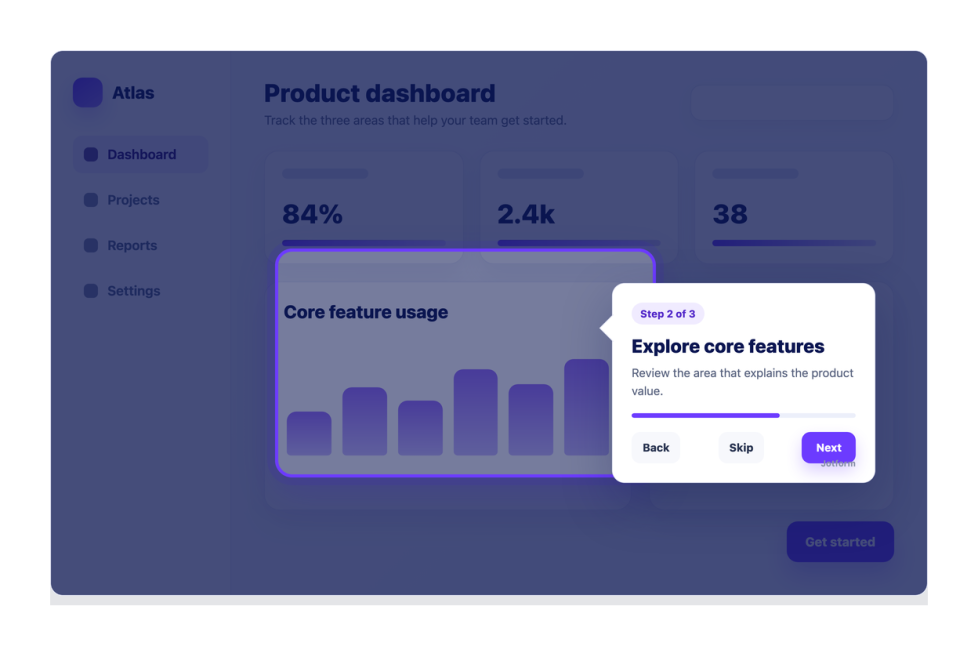
카테고리로 이동:웹사이트 경험위젯 사용하기웹사이트 투어
단계별 가이드, 강조 표시, 툴팁, 실행 제어, 반응형 디스플레이, 노코드 임베드 설정을 갖춘 웹사이트 투어 위젯을 만드세요.
카테고리로 이동:웹사이트 경험위젯 사용하기스켈레톤 로더
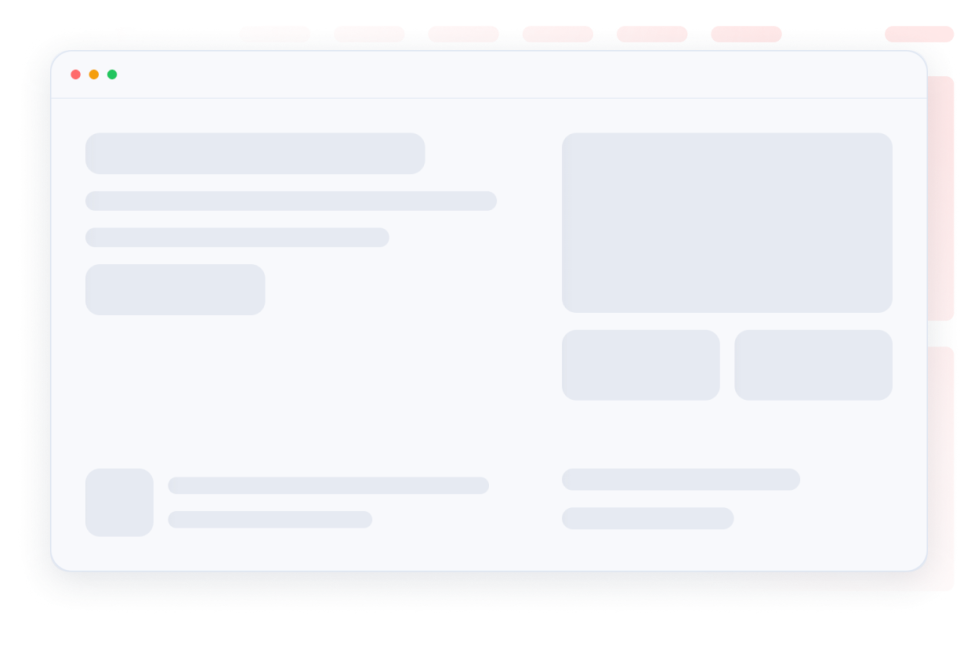
동일한 카드 내의 콘텐츠에 스켈레톤 ui 자리 표시자를 사용하여 스켈레톤 로딩 상태를 매끄럽게 만드세요. 단일 스켈레톤 색상, 모서리 반경, 쉬머 속도를 맞춤 설정하고 위젯을 삽입하세요.
카테고리로 이동:웹사이트 경험위젯 사용하기사용자 지정 스크롤바
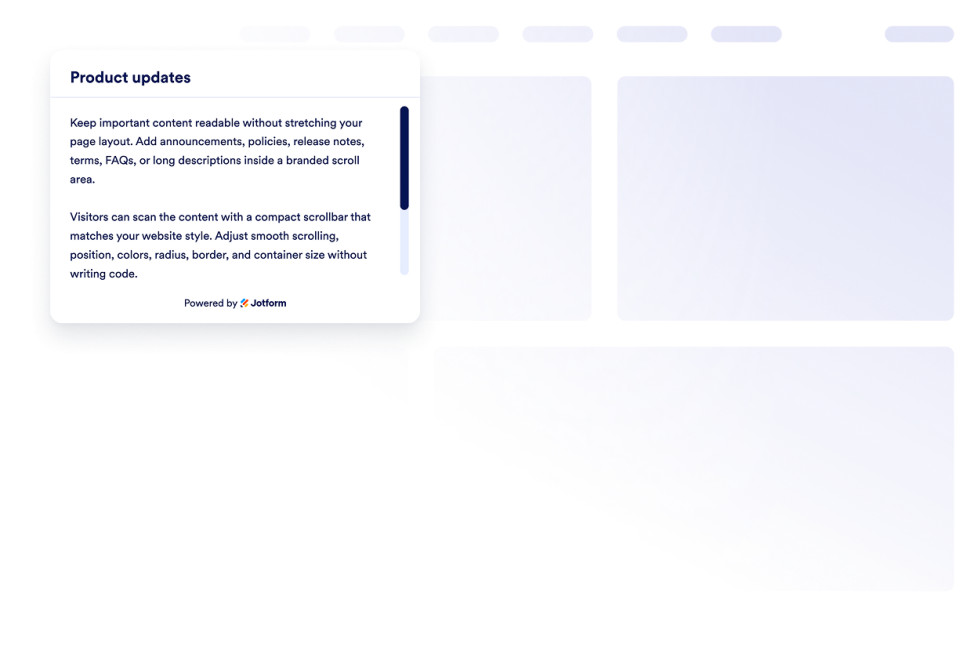
웹사이트에 사용자 지정 스크롤바 위젯을 추가하세요. 사용자 지정 너비, 색상, 위치, 테두리, 반경 및 스크롤 동작을 사용하여 브랜드에 맞는 스크롤 가능한 콘텐츠 영역을 만드세요.
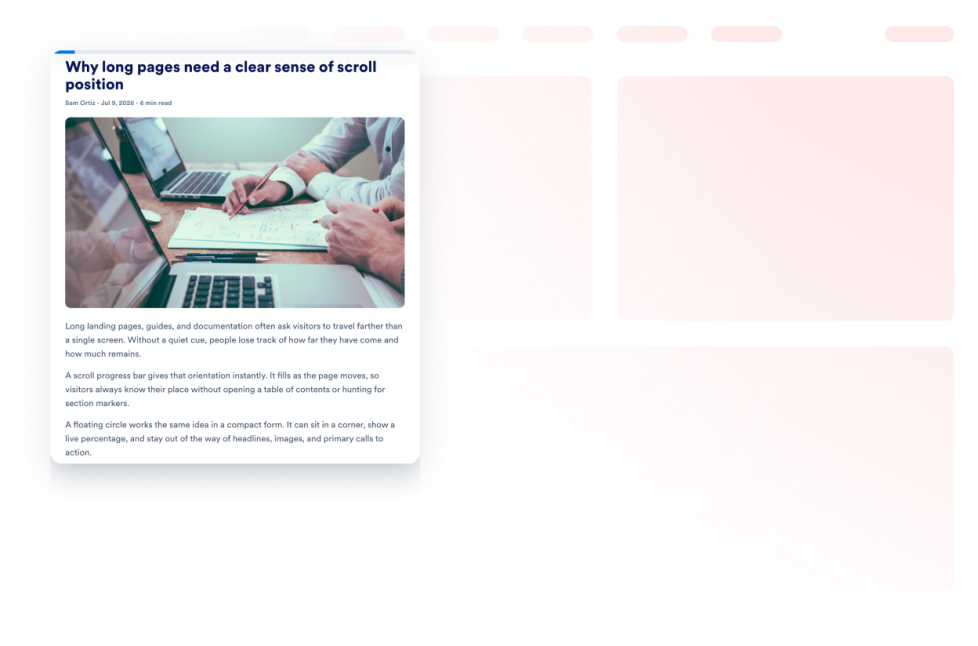
카테고리로 이동:웹사이트 경험위젯 사용하기읽기 진행률
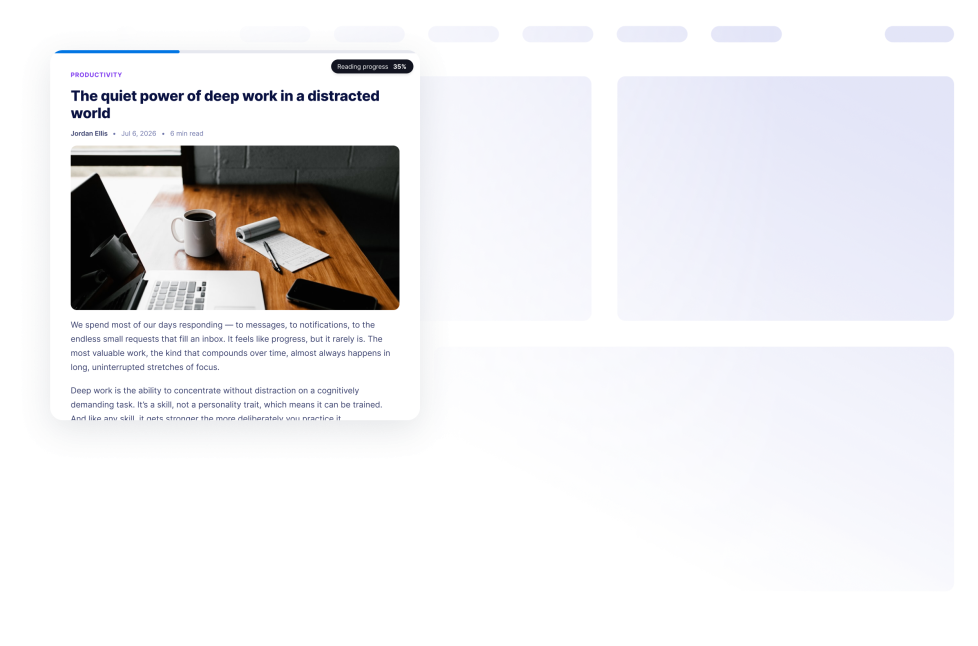
웹사이트에 읽기 진행률 위젯을 추가하세요. 코딩 없이 스크롤 인디케이터, 백분율, 남은 시간을 표시하고 막대, 원형 또는 단계별 스타일을 적용할 수 있습니다.
카테고리로 이동:웹사이트 경험위젯 사용하기스크롤 진행률
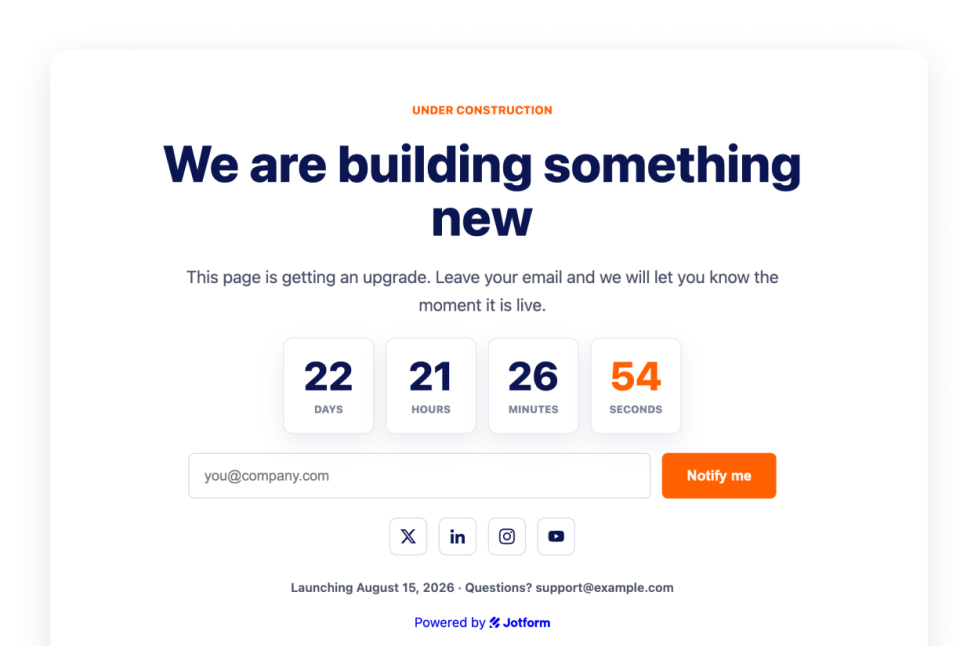
웹사이트에 스크롤 진행률 표시기 위젯을 추가하세요. 프로그레스바 또는 플로팅 진행률 버튼을 표시하고, 맨 위로 스크롤 기능을 활성화하며, 색상을 맞춤 설정하고 데스크톱 및 모바일에서의 위치를 조정할 수 있습니다.
카테고리로 이동:웹사이트 경험위젯 사용하기이탈 의도 팝업
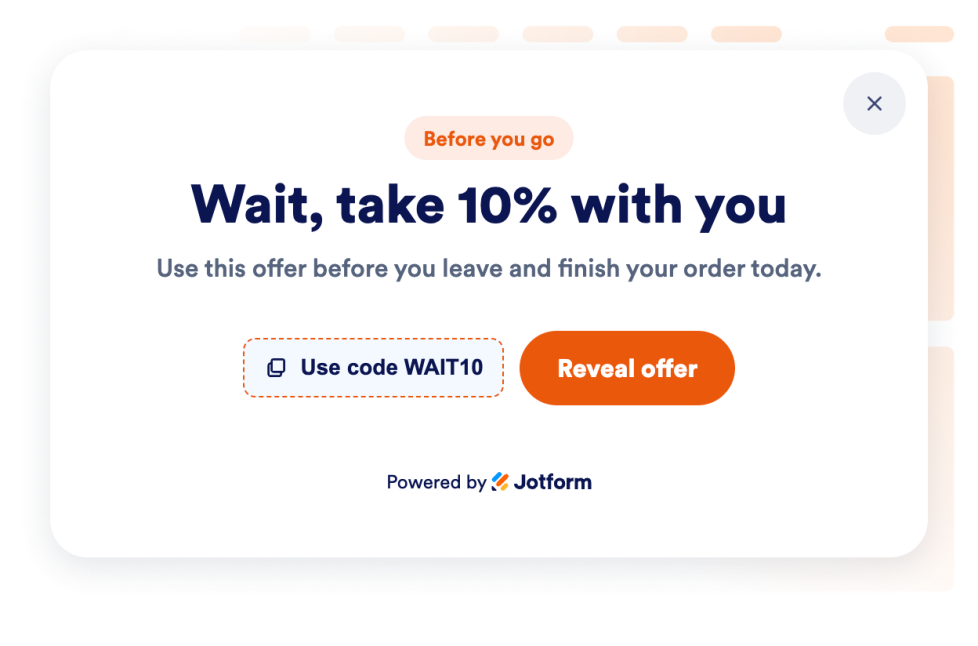
제안, 양식, 쿠폰, 타겟팅, 노출 빈도 제어 및 노코드 삽입 기능을 갖춘 이탈 의도 팝업 위젯을 추가하여 이탈하는 방문자를 되찾으세요.
카테고리로 이동:웹사이트 경험위젯 사용하기어떤 결과도 발견되지 않았습니다
No results match your search. Please try another keyword.
About Website Experience Widgets
Website experience widgets help make websites easier to navigate, read, and interact with without custom code. These embeddable tools can improve accessibility, organize page content, guide visitors through a website, and add helpful controls for browsing.
With Jotform’s website experience widgets, you can add features such as accessibility controls, back-to-top buttons, dark mode, tabs, reading progress indicators, website tours, custom scrollbars, and exit intent popups. They can be used on landing pages, blogs, help centers, product pages, portfolios, online stores, and business websites.
What can you do with website experience widgets?
Website experience widgets can help you:
- Improve page navigation with back-to-top buttons, custom scrollbars, and scroll progress indicators
- Give visitors more control over readability with accessibility and dark mode widgets
- Organize information into clickable tabs
- Show visitors how far they have progressed through an article or long page
- Introduce important website features with a guided website tour
- Display an under-construction message while a page is being prepared
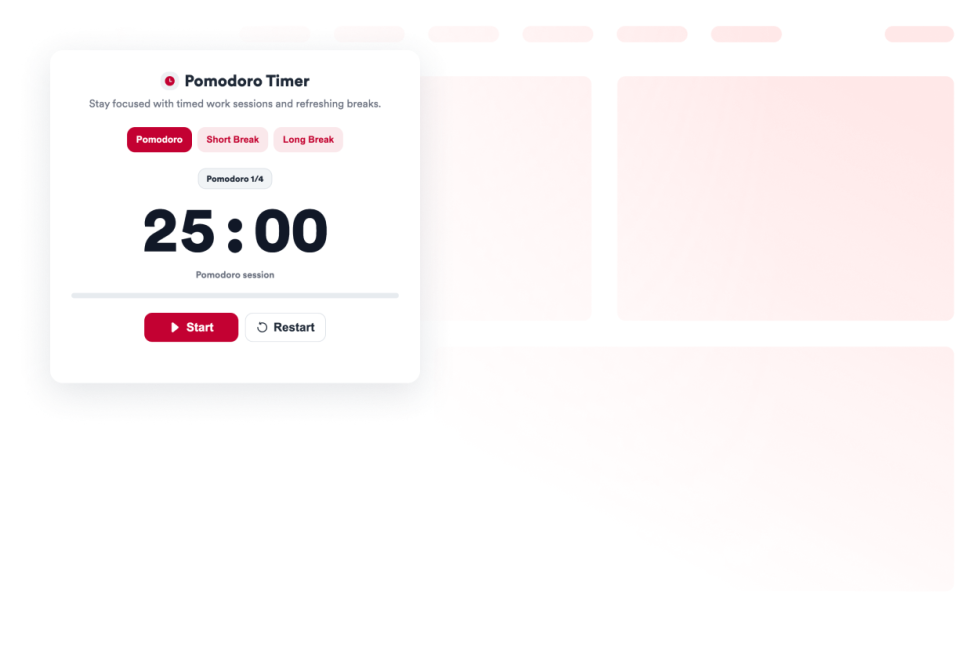
- Add interactive elements such as a custom cursor or Pomodoro timer
- Present a message, form, coupon, or offer with an exit intent pop-up
- Create a more useful website experience without building new features from scratch
Popular website experience widget use cases
Website experience widgets can support different visitor needs across a website. A Back to Top widget can help people navigate long articles, resource pages, and product listings. A Reading Progress widget can show progress, percentage, or estimated time remaining as visitors move through longer content.
An Accessibility widget can let visitors adjust options such as contrast, text size, spacing, and motion. A Dark Mode widget can provide an alternative viewing option for low-light browsing, while a Tabs widget can organize FAQs, services, pricing information, menus, or portfolio content into compact sections.
Businesses can also use a Website Tour widget to introduce key page features through guided steps and tooltips. An Exit Intent Popup widget can display a form, coupon, offer, or message when a visitor is preparing to leave the page.
Easy website widgets for any team
Embeddable website experience widgets can be useful for small businesses, creators, agencies, educators, nonprofits, bloggers, online stores, and website owners who want to improve their pages without relying on a developer or designer.
With Jform, users can select a widget, customize its content, settings, and design, preview the result, and copy the embed code. The code can then be added to a supported website editor or HTML section without custom code.
This enables different teams to add navigation controls, accessibility options, content sections, guided instructions, and interactive page features while keeping the widget consistent with the rest of their website.
관련 가이드
To learn more about setting up and managing widgets, users can read Jotform’s guide on managing website widgets. The guide explains that users can create new widgets, edit existing widgets, copy embed codes, control widget visibility, and organize their widget assets from the My Website Widgets page.
Website Experience Widgets FAQ
What are website experience widgets?
Website experience widgets are embeddable tools that improve how visitors browse and interact with a webpage. They can support navigation, accessibility, readability, content organization, guided browsing, and other on-page interactions.
What types of website experience widgets are available?
Available options include Accessibility, Back to Top, Custom Scrollbar, Custom Cursor, Pomodoro, Tabs, Dark Mode, Reading Progress, Under Construction, Exit Intent Popup, Scroll Progress, and Website Tour widgets. Each widget supports a different part of the visitor experience.
Where can I use website experience widgets?
You can use these widgets on landing pages, blogs, help pages, product pages, portfolios, online stores, educational websites, and business websites. Choose a widget based on what visitors need to read, find, or do on the page.
Do website experience widgets require coding?
No. You do not need a developer or designer to add a Jform website widget. You can customize the widget, copy the embed code, and add it to your website without custom code. The exact placement method depends on the website platform or page editor you use.